8.1 Remove Pixel PHI
Some images have patient names or labels drawn onto the pixels. Cleaning DICOM tags alone does not remove them.
Demo series
| Series | Path | Used for |
|---|---|---|
davidson_cxr |
tests/controller/assets/test_dcm_files/davidson_cxr |
Whitelist → Detect → Black out |
us_rgb_single_frame |
tests/controller/assets/test_dcm_files/us_rgb_single_frame (US_RGB_SingleFrame.dcm) |
Detect → Blend into background; Exclude Area on the machine-parameter block under mindray |
Import each folder into your project, then open the series in Series View.
Goal
- On
davidson_cxr, detect burned-in text and black out PHI while keeping useful markers via the default whitelist. - On
us_rgb_single_frame, detect burned-in text and remove it by blending into the background (inpaint). - On the same color US series, mark the non-PHI machine-parameter strip with Exclude Area so Detect Text and Remove Text skip it.
Before you start
- Complete AI Features setup so OCR models are ready.
- Import the demo series and open them in Series View from Dataset.
Workflow on davidson_cxr (black out)
Follow these steps in order. Screenshots match this fixture.
1. Default whitelist and Frame context
- Keep the default whitelist (do not clear it).
- Set edit context to Frame (not whole series yet).
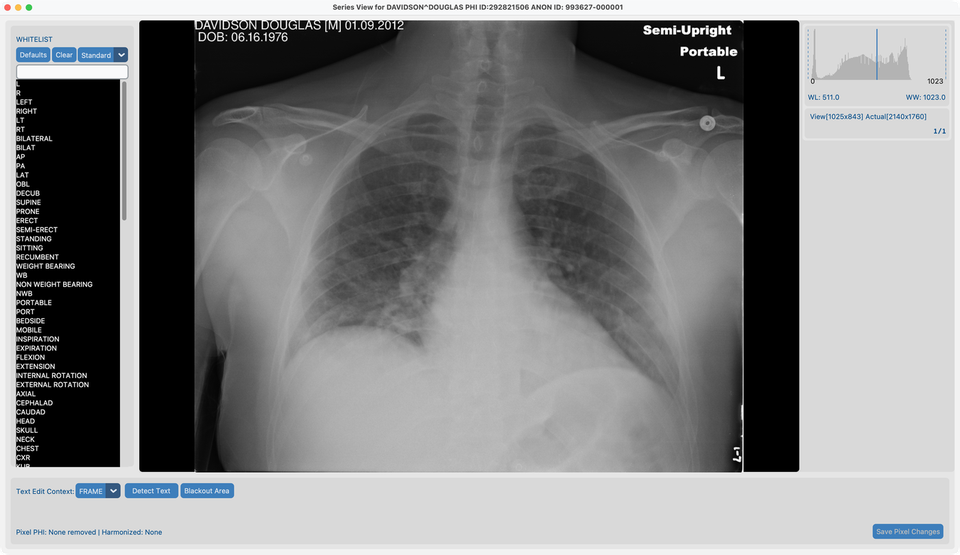
2. Detect Text
- Click Detect Text.
- Wait until detection finishes. Green rectangles mark text that would be removed.
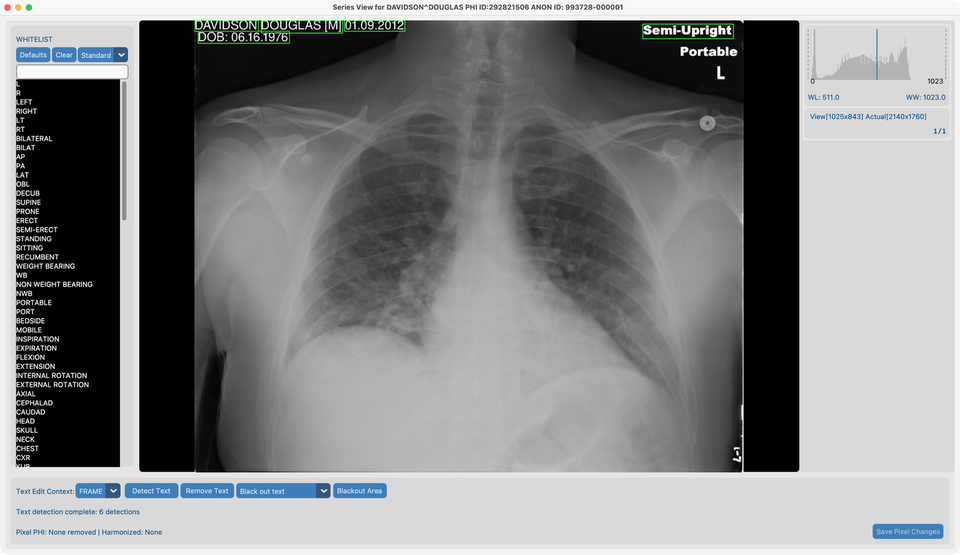
On this chest X-ray you should see green boxes around the patient name, date, DOB, and similar PHI — but not around Portable or L. Those words are already on the default whitelist, so Detect Text leaves them alone.
Whitelist match dropdown (next to Defaults / Clear — here set to Standard):
Controls how closely OCR text must match a whitelist entry to be treated as a keeper:
| Setting | Effect |
|---|---|
| Exact | Only hide text that matches a whitelist entry letter-for-letter |
| Strict | Almost exact — tiny OCR mistakes only |
| Standard (default) | Allows small OCR errors (for example AXIL still matches AXIAL) |
| Lenient | Most forgiving — better for noisy text and short markers |
Use a stricter setting if too much text is skipped; use a looser one if useful markers keep getting boxed.
3. Review and whitelist keepers
- If a green rectangle covers text you want to keep, click that rectangle.
- The text is added to the whitelist on the left and will not be removed.
On davidson_cxr, Portable and L are already covered by the default whitelist — you usually do not need to add them again.
4. Remove Text using black out
- Set the removal mode dropdown to Black out text.
- Click Remove Text.
- PHI regions become solid black; whitelisted keepers stay.
- Click Save Pixel Changes when you are satisfied.
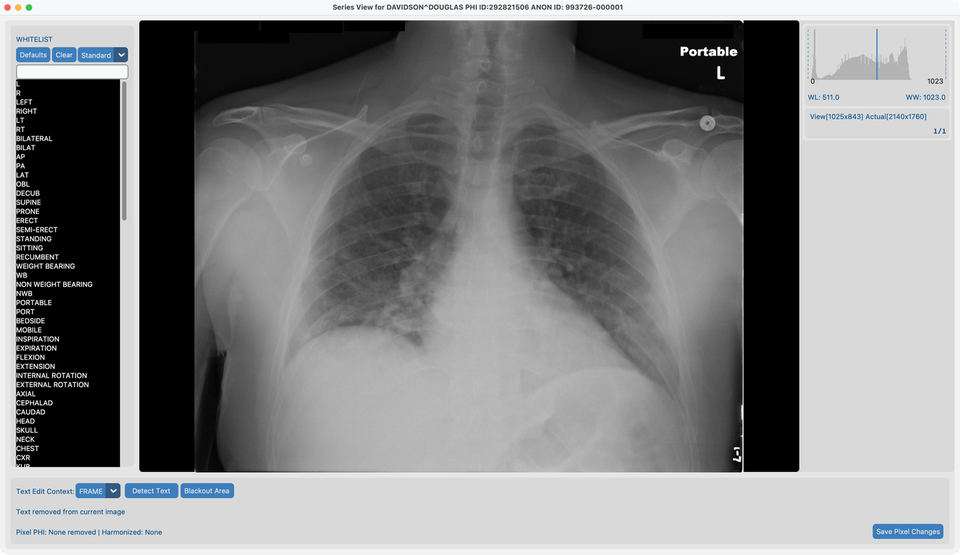
Black out is the usual choice for de-identification: removed text is clearly gone and cannot be recovered from the pixels.
Workflow on us_rgb_single_frame (blend into background)
Use this color ultrasound frame when you want removed text to look like nearby tissue instead of black bars.
5. Remove Text using blend with background
- Import and open
us_rgb_single_frame(US_RGB_SingleFrame.dcm) in Series View. - Keep edit context on Frame.
- Set the removal mode dropdown to Blend into background.
- Click Detect Text and wait for the green rectangles.
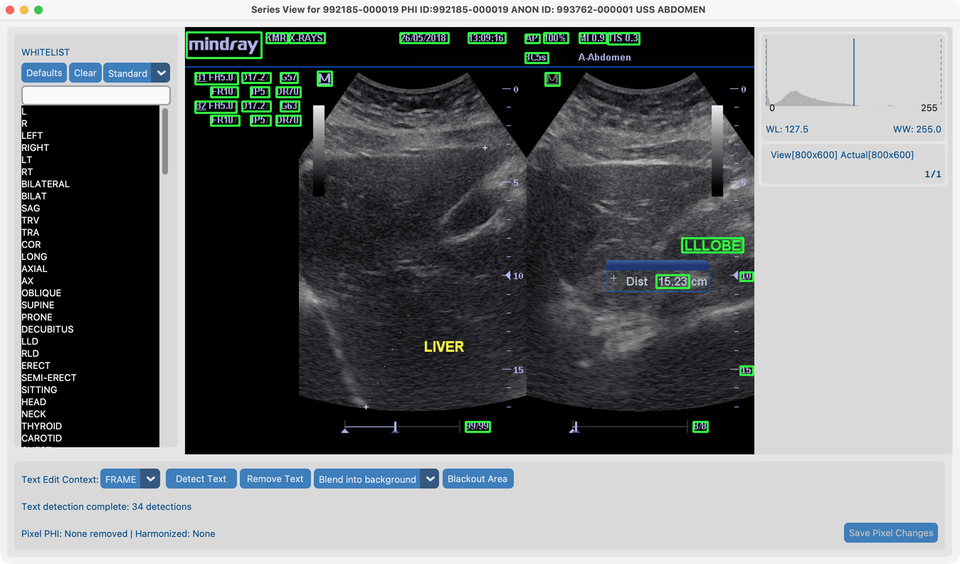
- Click Remove Text.
- Detected text is painted out by blending with surrounding pixels (inpaint), then Save Pixel Changes.
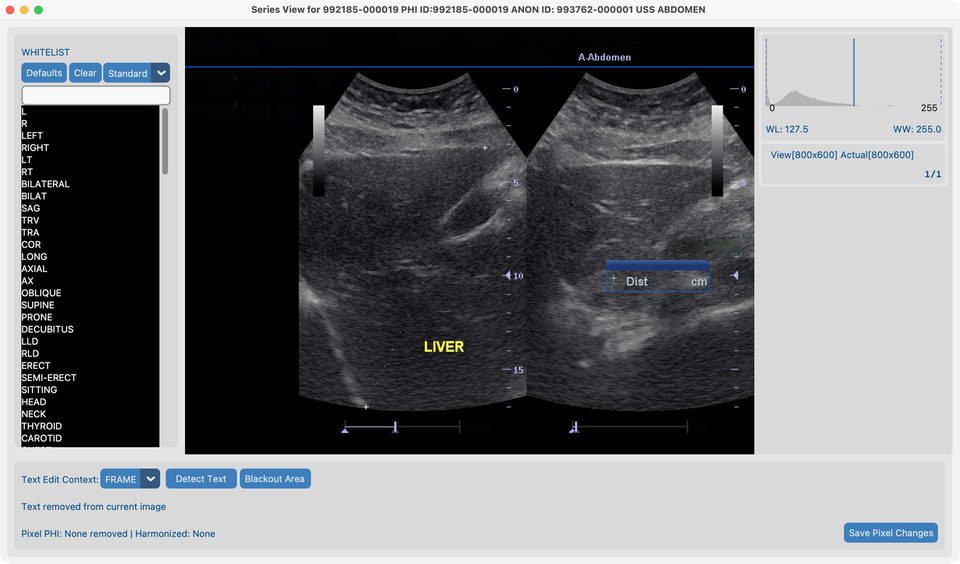
Black out vs Blend into background: black out replaces text with black; blend fills the area so it matches the image around it. Prefer black out when you need an obvious, irreversible redaction; prefer blend when a less conspicuous result is acceptable (for example some ultrasound overlays).
Workflow on Color US (Exclude Area)
Use the same us_rgb_single_frame series when OCR boxes machine settings that are not PHI. Exclude Area skips a spatial region for Detect Text and Remove Text without changing pixels (unlike Blackout Area).
6. Exclude the parameter block under mindray
On this frame, a dense block of machine parameters (gain, depth, FR, DR, and similar tokens) sits on the upper left, directly below the mindray logo.
- Open
us_rgb_single_framein Series View with edit context Frame. - Draw a rectangle covering that parameter block (leave mindray and true PHI / site labels outside if you still want them detected). Pending draws appear as solid blue rectangles.
- Click Exclude Area. The rectangle moves to the exclude list and redraws as a white dotted outline (no fill).
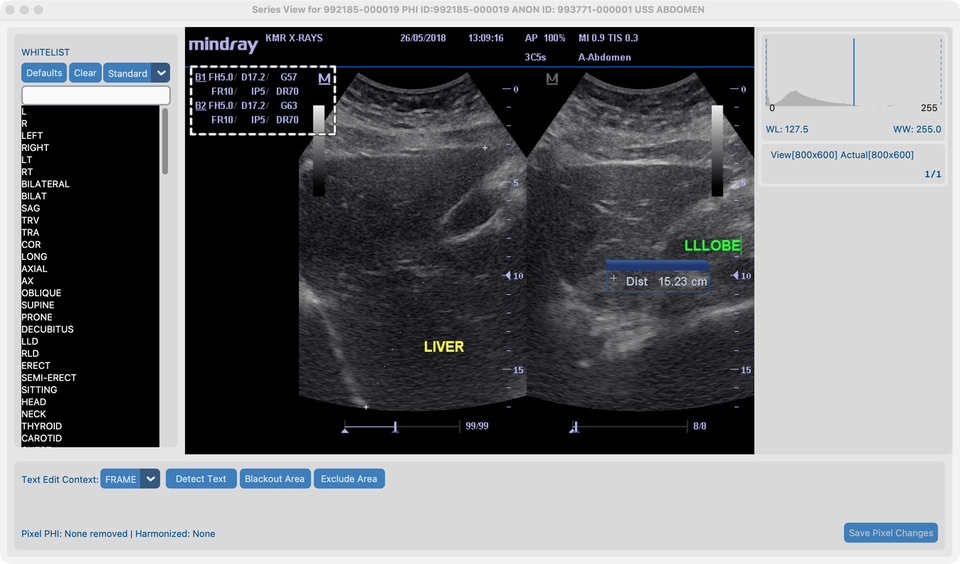
- Click Detect Text. Green boxes should appear on PHI / vendor text outside the block; the parameter tokens inside the dotted region should not be boxed for removal.
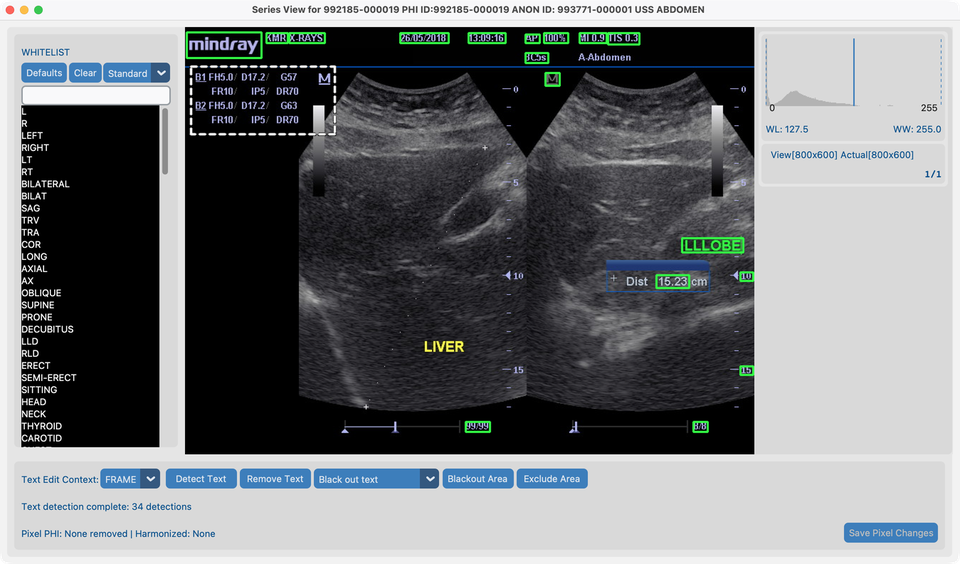
- Optionally choose Blend into background or Black out text, then Remove Text and Save Pixel Changes.
- Click a white dotted rectangle to remove it from the exclude list if you need to adjust.
Whitelist vs Exclude Area vs Blackout Area: whitelist keeps specific OCR strings; Exclude Area skips a region (no pixel change); Blackout Area paints drawn rectangles black. Prefer setting exclude rectangles before Detect Text (or Detect again after adjusting). With Series edit context, drawing propagates across frames so the same panel can be excluded on a cine loop.
After the demo
- Dataset Pixel PHI status should update for each series you saved.
- Modality whitelists and the match dropdown (Exact → Lenient) live in Series View; stricter matching means fewer OCR hits are treated as whitelist keepers.
- Exclude regions are for the current Series View session (same as other canvas overlays). Re-open the series and redraw if you need them again.
- To run the same tool on many studies, see 8.4 Run on many studies.
What good looks like
- On
davidson_cxr: PHI blacked out; orientation markers kept if whitelisted. - On
us_rgb_single_frame: burned-in labels blended away without solid black bars; with Exclude Area, the mindray parameter block is not removed as PHI. - Pixel PHI column updates in Dataset.
If it fails
- Many false boxes → tighten match strictness; whitelist keepers; or Exclude Area for whole panels.
- Missed text → manual Blackout Area.
- Parameter text still boxed → enlarge the exclude rectangle and Detect again; click dotted outlines to delete and redraw.
- Tools greyed out → finish AI Features.
Next steps
Continue with 8.2 Harmonize names using CT_Head_With_Contrast.